
Developer Portal
C++ Compilation
Compiler setup instructions for Unreal Engine C++ projects and AVS source workflows.
C++ Setup Guide
Unreal Engine projects containing C++ code require a compatible compiler to build binaries and run in the editor. Follow this guide to set up your development environment correctly.
Build Tools
- Minimal Installation - includes only what is needed to compile.
- Ideal if you use an external editor like VS Code or Rider.
- Lighter footprint on your system.
Visual Studio
- Full IDE Experience - includes Microsoft's code editor.
- Native debugging and project management for C++.
- Heavier installation but provides a complete workflow.
01
Select Workloads
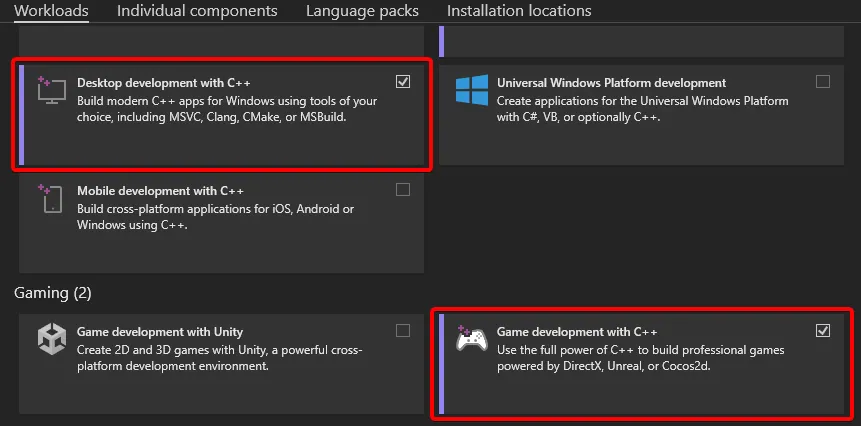
After launching the installer, you must select the correct workloads to ensure Unreal Engine compatibility.
- Check Desktop development with C++.
- If using the full Visual Studio IDE, also check Game development with C++.
02
Individual Components
Certain .NET runtimes are required depending on which version of Unreal Engine you are using.
Required Components
In the Individual components tab, ensure the following are checked:
- .NET Framework 4.8 targeting pack (Required for all versions)
- .NET 8.0 Runtime (For Unreal 5.4+)
- .NET 6.0 Runtime (For Unreal 5.0 - 5.3)
03
Install & Compile
Click Install and wait for the process to complete. Once finished, you can build your project.
- Restart your computer if prompted by the installer.
- Navigate to your project folder and launch your .uproject file.
- If prompted that "Modules are missing or built with a different engine version", click Yes to rebuild.